> ## Documentation Index
> Fetch the complete documentation index at: https://docs.volteras.com/llms.txt
> Use this file to discover all available pages before exploring further.
# MCP authentication
> Sign in as yourself from an AI client, or give a system or agent its own MCP credential.
There are two ways to authenticate with the Volteras MCP server:
| | Sign in with the Volteras Portal | MCP credential |
| - | - | - |
| **Best for** | A person using Claude, Claude Code, VS Code or another AI client | Your own systems, scripts and agents with no person present |
| **Who it acts as** | You, with your role's permissions | Your organization |
| **How you set it up** | Add the server URL to your client and approve the request | Create a credential in the portal and exchange it for tokens |
| **OAuth grant** | Authorization code with PKCE | Client credentials |
Both give the client a short-lived access token for `https://mcp.volteras.com/mcp`. Your existing Volteras API credentials do not work with the MCP server: it only accepts tokens issued for it.
Each method has to be switched on for your organization. [Contact us](https://volteras.com/contact-us) if you can't sign in or the MCP credentials page is missing from the portal.
## Sign in with the Volteras Portal
When you add the server to an AI client, the client opens the Volteras Portal in your browser and asks you to approve it. No API keys to copy.
Use the server URL `https://mcp.volteras.com/mcp`. See [Connect your AI client](/overview/mcp-setup) for the steps in each client.
Your browser opens the Volteras Portal. Sign in if you aren't already. If your organization requires two-factor authentication, you will be asked to set it up first.
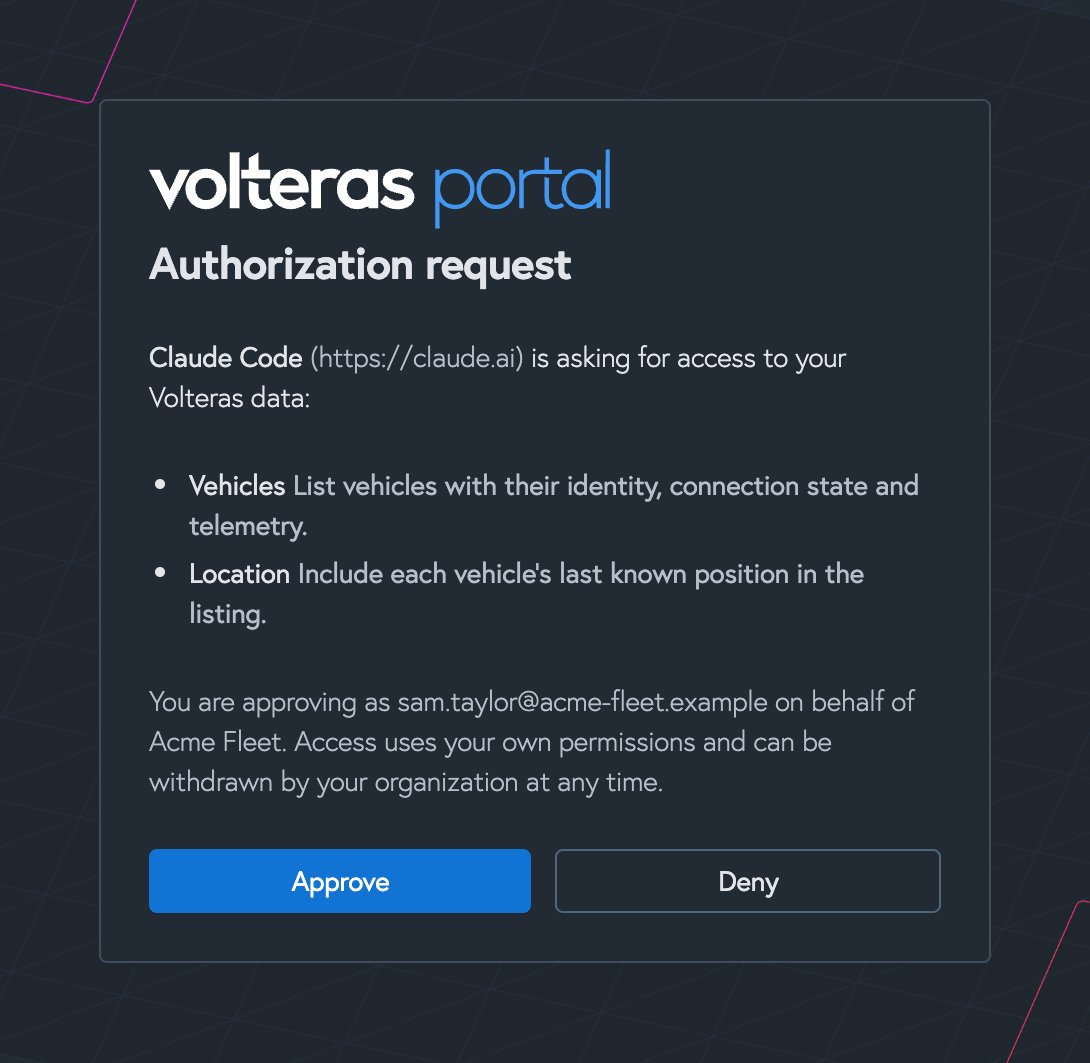
The **Authorization request** page shows which client is asking, the data it wants access to, and the account and organization you are approving as. Check the client is the one you just added, then select **Approve**.
 The browser hands you back to your client, which is now connected. Try asking it "who am I connected to Volteras as?"
### What the client can see
The assistant acts as you, so it can never see more than you can. Its scopes are worked out every time it renews its token, and are the scopes that all of these allow:
* **Your role.** Owners, Admins and Developers can have `vehicles:read` and `location:read`. Team members can have `vehicles:read` only.
* **Your organization.** Your organization may not have every scope enabled. For example, if `location:read` isn't enabled, no one in it gets position data, whatever their role.
* **The client's request.** A client can ask for fewer scopes than you could grant it.
If your role changes, the client's access changes with it within ten minutes. If your user is deactivated or moves to another organization, the client is disconnected.
### Staying signed in
Your client renews its access token in the background, so you won't be asked to sign in every session. A sign-in lasts up to 30 days. After that, your client takes you through the approval step again.
### Which clients can sign in
Clients identify themselves with a [Client ID Metadata Document](https://datatracker.ietf.org/doc/draft-ietf-oauth-client-id-metadata-document/): an `https` URL that describes the client. This is the method recommended by the MCP authorization specification. The server does not support dynamic client registration, so a client that relies on it can't sign in. Use an [MCP credential](#mcp-credentials) with those clients instead, if they let you set a bearer token.
## MCP credentials
An MCP credential is a client ID and secret that belongs to your organization rather than a person. Use one for back-end systems, scheduled jobs and agents you build yourself.
### Create a credential
You need the Owner, Admin or Developer role. Owners and Admins can also revoke credentials.
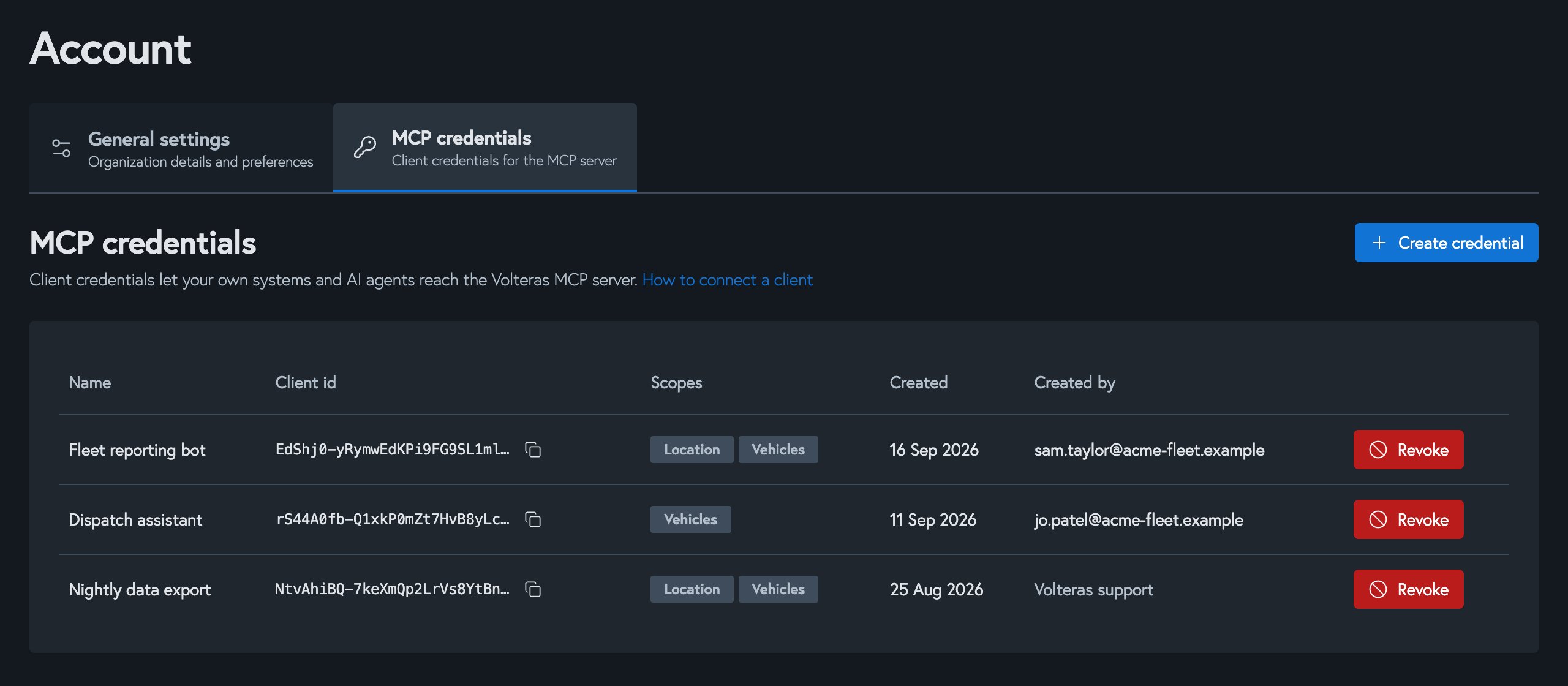
In the [Volteras Portal](https://portal.volteras.com), go to **Account** > **MCP credentials** and select **Create credential**.
The browser hands you back to your client, which is now connected. Try asking it "who am I connected to Volteras as?"
### What the client can see
The assistant acts as you, so it can never see more than you can. Its scopes are worked out every time it renews its token, and are the scopes that all of these allow:
* **Your role.** Owners, Admins and Developers can have `vehicles:read` and `location:read`. Team members can have `vehicles:read` only.
* **Your organization.** Your organization may not have every scope enabled. For example, if `location:read` isn't enabled, no one in it gets position data, whatever their role.
* **The client's request.** A client can ask for fewer scopes than you could grant it.
If your role changes, the client's access changes with it within ten minutes. If your user is deactivated or moves to another organization, the client is disconnected.
### Staying signed in
Your client renews its access token in the background, so you won't be asked to sign in every session. A sign-in lasts up to 30 days. After that, your client takes you through the approval step again.
### Which clients can sign in
Clients identify themselves with a [Client ID Metadata Document](https://datatracker.ietf.org/doc/draft-ietf-oauth-client-id-metadata-document/): an `https` URL that describes the client. This is the method recommended by the MCP authorization specification. The server does not support dynamic client registration, so a client that relies on it can't sign in. Use an [MCP credential](#mcp-credentials) with those clients instead, if they let you set a bearer token.
## MCP credentials
An MCP credential is a client ID and secret that belongs to your organization rather than a person. Use one for back-end systems, scheduled jobs and agents you build yourself.
### Create a credential
You need the Owner, Admin or Developer role. Owners and Admins can also revoke credentials.
In the [Volteras Portal](https://portal.volteras.com), go to **Account** > **MCP credentials** and select **Create credential**.
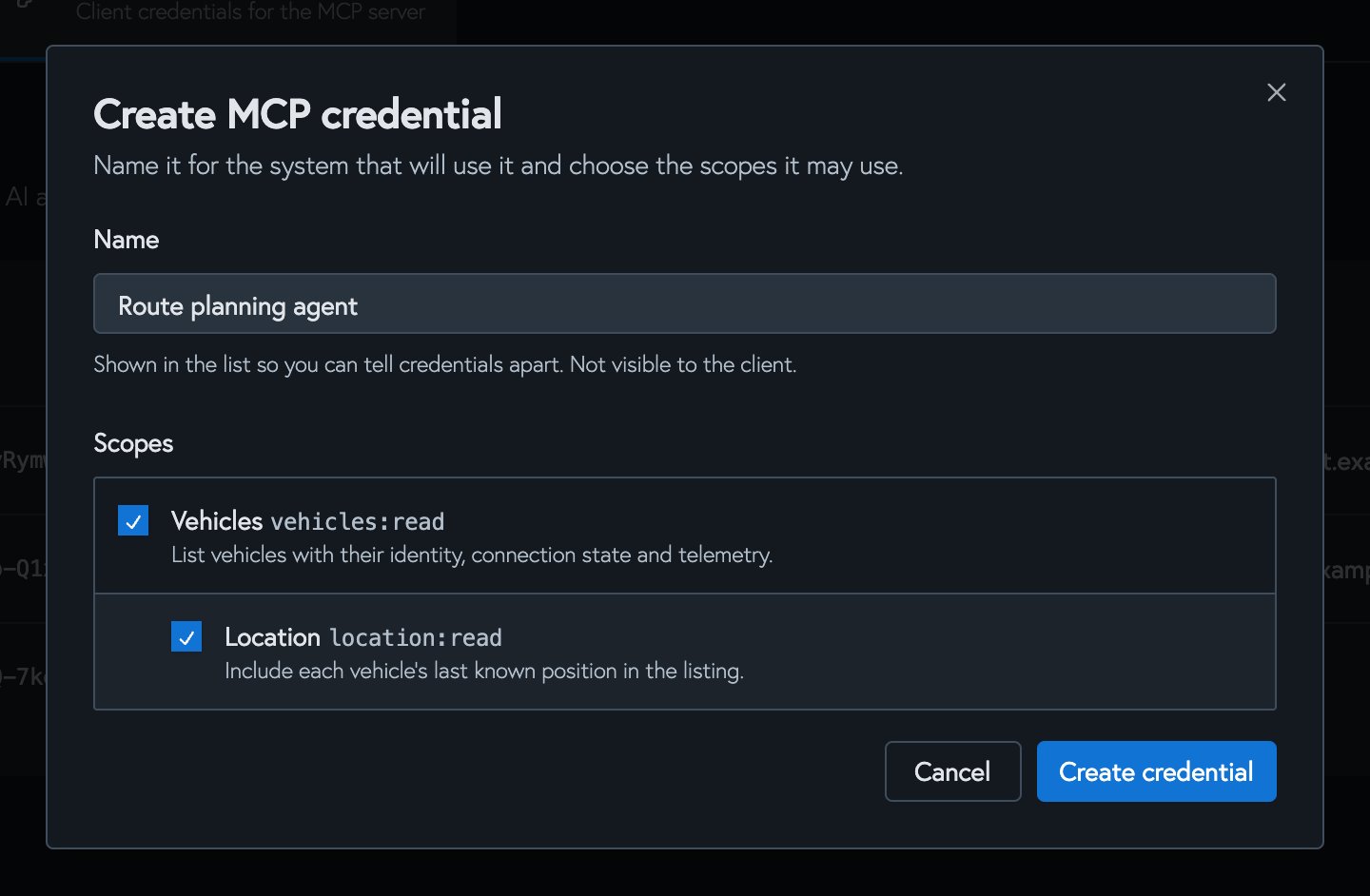
 Name it after the system that will use it, for example "Fleet reporting bot". Choose its scopes: **Vehicles** (`vehicles:read`) and, optionally, **Location** (`location:read`). Location needs Vehicles.
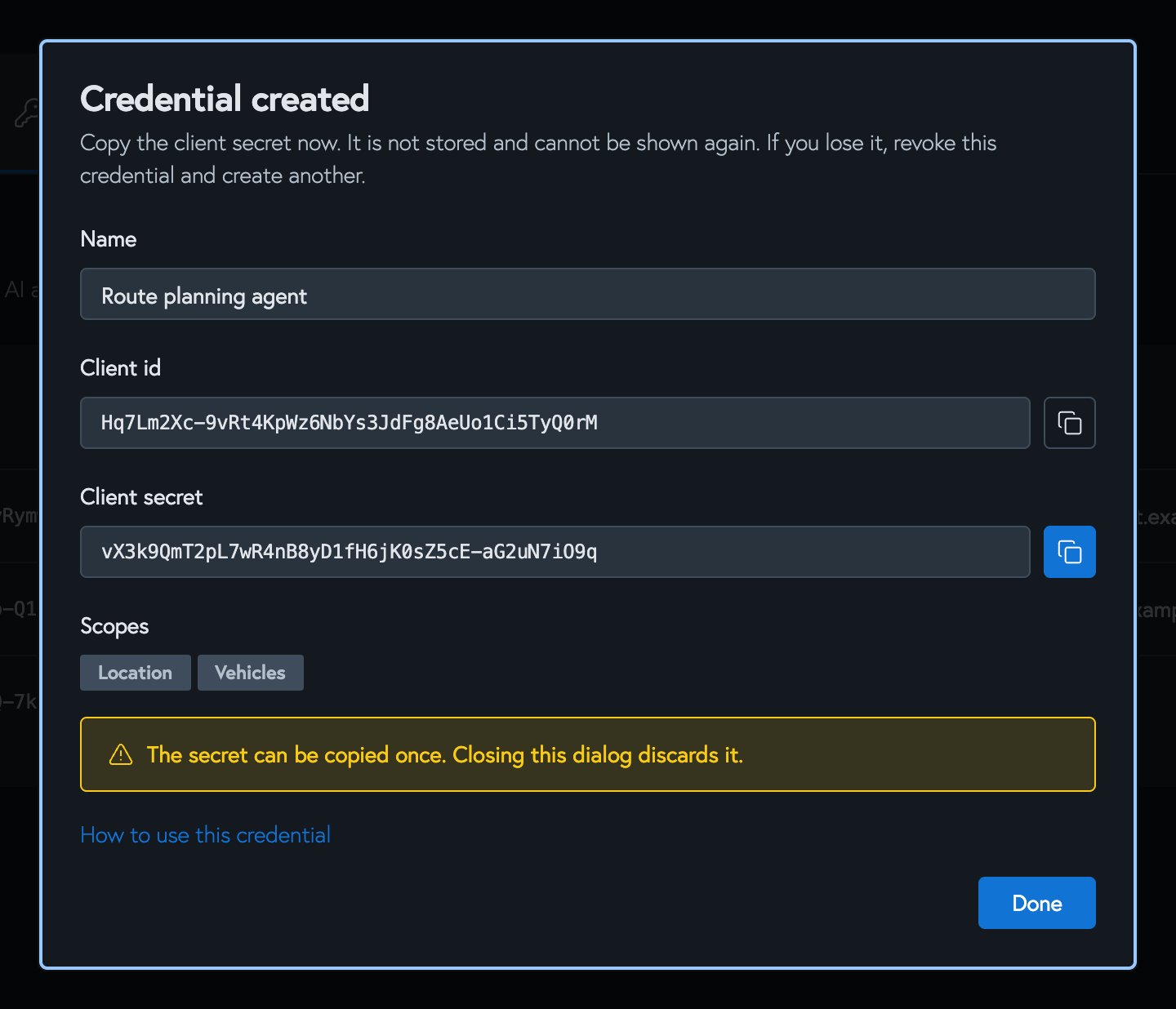
 Copy the client ID and client secret. The secret is shown once and is not stored. If you lose it, revoke the credential and create another.
 Treat the client secret like a password. Keep it in a secrets manager, never in source code or in a prompt.
### Get an access token
Exchange the credential for an access token at the token endpoint. Send the MCP server URL as `resource`. Without it, the request is treated as a Volteras API token request, and your MCP credential is rejected with `Incorrect client_id`.
```bash theme={null}
curl https://api.volteras.com/v1/oauth2/token \
-u "$VOLTERAS_MCP_CLIENT_ID:$VOLTERAS_MCP_CLIENT_SECRET" \
-d grant_type=client_credentials \
-d resource=https://mcp.volteras.com/mcp
```
```json Response theme={null}
{
"access_token": "eyJhbGciOiJSUzI1NiIsImtpZCI6...",
"token_type": "bearer",
"expires_in": 600,
"scope": "location:read vehicles:read"
}
```
| Parameter | Required | Description |
| - | - | - |
| `grant_type` | Yes | `client_credentials` |
| `resource` | Yes | `https://mcp.volteras.com/mcp` |
| `scope` | No | Space-separated scopes, to ask for fewer than the credential holds. Defaults to all of the credential's scopes that your organization has enabled. |
Pass the client ID and secret with HTTP Basic authentication, as above, or as `client_id` and `client_secret` form fields.
The token lasts ten minutes and there is no refresh token. Request a new one when it expires. Then send it as a bearer token on every request to the MCP server:
```
Authorization: Bearer
```
### Use it from an agent
Most MCP client libraries take a bearer token or an auth hook. For example, with the official Python SDK:
```python theme={null}
import asyncio
import os
import httpx
from mcp import ClientSession
from mcp.client.streamable_http import streamablehttp_client
MCP_URL = "https://mcp.volteras.com/mcp"
CLIENT_ID = os.environ["VOLTERAS_MCP_CLIENT_ID"]
CLIENT_SECRET = os.environ["VOLTERAS_MCP_CLIENT_SECRET"]
def get_token() -> str:
response = httpx.post(
"https://api.volteras.com/v1/oauth2/token",
auth=(CLIENT_ID, CLIENT_SECRET),
data={"grant_type": "client_credentials", "resource": MCP_URL},
)
response.raise_for_status()
return response.json()["access_token"]
async def main():
headers = {"Authorization": f"Bearer {get_token()}"}
async with streamablehttp_client(MCP_URL, headers=headers) as (read, write, _):
async with ClientSession(read, write) as session:
await session.initialize()
result = await session.call_tool("list_vehicles", {"page_size": 10})
print(result.structuredContent)
asyncio.run(main())
```
For a long-running agent, fetch a new token before the current one is ten minutes old.
### Revoke a credential
In **Account** > **MCP credentials**, select **Revoke** next to the credential. It is refused new tokens immediately. A token it already holds keeps working until it expires, within ten minutes. Revoking can't be undone.
## Scopes
| Scope | Portal label | Grants |
| - | - | - |
| `vehicles:read` | Vehicles | The `list_vehicles` tool: vehicles with their identity, connection state and telemetry. |
| `location:read` | Location | Position fields in `list_vehicles`: latitude, longitude, speed, heading and elevation. Requires `vehicles:read`. |
The `get_me` tool needs no scope. These scopes are separate from the [vehicle consent scopes](/overview/scopes) granted when a vehicle is connected. A value is only returned when both allow it. See the [tools reference](/overview/mcp-tools#consent-gated-fields).
## For client developers
The server implements the [MCP authorization specification](https://modelcontextprotocol.io/specification/latest/basic/authorization). A client can discover everything it needs from the server URL:
| | URL |
| - | - |
| Protected resource metadata | `https://mcp.volteras.com/.well-known/oauth-protected-resource/mcp` |
| Authorization server metadata | `https://api.volteras.com/.well-known/oauth-authorization-server` |
| Authorization endpoint | `https://api.volteras.com/v1/oauth2/authorize` |
| Token endpoint | `https://api.volteras.com/v1/oauth2/token` |
| JWKS | `https://api.volteras.com/.well-known/jwks.json` |
* An unauthenticated request to the server gets `401` with a `WWW-Authenticate` header pointing at the protected resource metadata.
* The authorization code flow needs PKCE with `S256` and the `resource` parameter. The `client_id` is the `https` URL of the client's metadata document, which must list its `redirect_uris`. Loopback redirects (`http://localhost`, `127.0.0.1`, `[::1]`) match on any port.
* Access tokens are RS256-signed JWTs (`typ: at+jwt`) that last ten minutes.
* Refresh tokens rotate on every use. Reusing an old refresh token ends the session.
Treat the client secret like a password. Keep it in a secrets manager, never in source code or in a prompt.
### Get an access token
Exchange the credential for an access token at the token endpoint. Send the MCP server URL as `resource`. Without it, the request is treated as a Volteras API token request, and your MCP credential is rejected with `Incorrect client_id`.
```bash theme={null}
curl https://api.volteras.com/v1/oauth2/token \
-u "$VOLTERAS_MCP_CLIENT_ID:$VOLTERAS_MCP_CLIENT_SECRET" \
-d grant_type=client_credentials \
-d resource=https://mcp.volteras.com/mcp
```
```json Response theme={null}
{
"access_token": "eyJhbGciOiJSUzI1NiIsImtpZCI6...",
"token_type": "bearer",
"expires_in": 600,
"scope": "location:read vehicles:read"
}
```
| Parameter | Required | Description |
| - | - | - |
| `grant_type` | Yes | `client_credentials` |
| `resource` | Yes | `https://mcp.volteras.com/mcp` |
| `scope` | No | Space-separated scopes, to ask for fewer than the credential holds. Defaults to all of the credential's scopes that your organization has enabled. |
Pass the client ID and secret with HTTP Basic authentication, as above, or as `client_id` and `client_secret` form fields.
The token lasts ten minutes and there is no refresh token. Request a new one when it expires. Then send it as a bearer token on every request to the MCP server:
```
Authorization: Bearer
```
### Use it from an agent
Most MCP client libraries take a bearer token or an auth hook. For example, with the official Python SDK:
```python theme={null}
import asyncio
import os
import httpx
from mcp import ClientSession
from mcp.client.streamable_http import streamablehttp_client
MCP_URL = "https://mcp.volteras.com/mcp"
CLIENT_ID = os.environ["VOLTERAS_MCP_CLIENT_ID"]
CLIENT_SECRET = os.environ["VOLTERAS_MCP_CLIENT_SECRET"]
def get_token() -> str:
response = httpx.post(
"https://api.volteras.com/v1/oauth2/token",
auth=(CLIENT_ID, CLIENT_SECRET),
data={"grant_type": "client_credentials", "resource": MCP_URL},
)
response.raise_for_status()
return response.json()["access_token"]
async def main():
headers = {"Authorization": f"Bearer {get_token()}"}
async with streamablehttp_client(MCP_URL, headers=headers) as (read, write, _):
async with ClientSession(read, write) as session:
await session.initialize()
result = await session.call_tool("list_vehicles", {"page_size": 10})
print(result.structuredContent)
asyncio.run(main())
```
For a long-running agent, fetch a new token before the current one is ten minutes old.
### Revoke a credential
In **Account** > **MCP credentials**, select **Revoke** next to the credential. It is refused new tokens immediately. A token it already holds keeps working until it expires, within ten minutes. Revoking can't be undone.
## Scopes
| Scope | Portal label | Grants |
| - | - | - |
| `vehicles:read` | Vehicles | The `list_vehicles` tool: vehicles with their identity, connection state and telemetry. |
| `location:read` | Location | Position fields in `list_vehicles`: latitude, longitude, speed, heading and elevation. Requires `vehicles:read`. |
The `get_me` tool needs no scope. These scopes are separate from the [vehicle consent scopes](/overview/scopes) granted when a vehicle is connected. A value is only returned when both allow it. See the [tools reference](/overview/mcp-tools#consent-gated-fields).
## For client developers
The server implements the [MCP authorization specification](https://modelcontextprotocol.io/specification/latest/basic/authorization). A client can discover everything it needs from the server URL:
| | URL |
| - | - |
| Protected resource metadata | `https://mcp.volteras.com/.well-known/oauth-protected-resource/mcp` |
| Authorization server metadata | `https://api.volteras.com/.well-known/oauth-authorization-server` |
| Authorization endpoint | `https://api.volteras.com/v1/oauth2/authorize` |
| Token endpoint | `https://api.volteras.com/v1/oauth2/token` |
| JWKS | `https://api.volteras.com/.well-known/jwks.json` |
* An unauthenticated request to the server gets `401` with a `WWW-Authenticate` header pointing at the protected resource metadata.
* The authorization code flow needs PKCE with `S256` and the `resource` parameter. The `client_id` is the `https` URL of the client's metadata document, which must list its `redirect_uris`. Loopback redirects (`http://localhost`, `127.0.0.1`, `[::1]`) match on any port.
* Access tokens are RS256-signed JWTs (`typ: at+jwt`) that last ten minutes.
* Refresh tokens rotate on every use. Reusing an old refresh token ends the session.